
Microsoft Excel is one of the most popular spreadsheet programs used by students, teachers, accountants, office employees, business owners, and data analysts. Whether you are managing financial records, preparing reports, creating charts, or organizing large amounts of information, Excel can make your work easier.
However, using a mouse for every task can waste valuable time. This is where Excel keyboard shortcuts become useful.
With the help of keyboard shortcuts, you can quickly copy and paste data, format cells, insert rows, delete columns, calculate formulas, navigate worksheets, and perform many other tasks without repeatedly using your mouse.
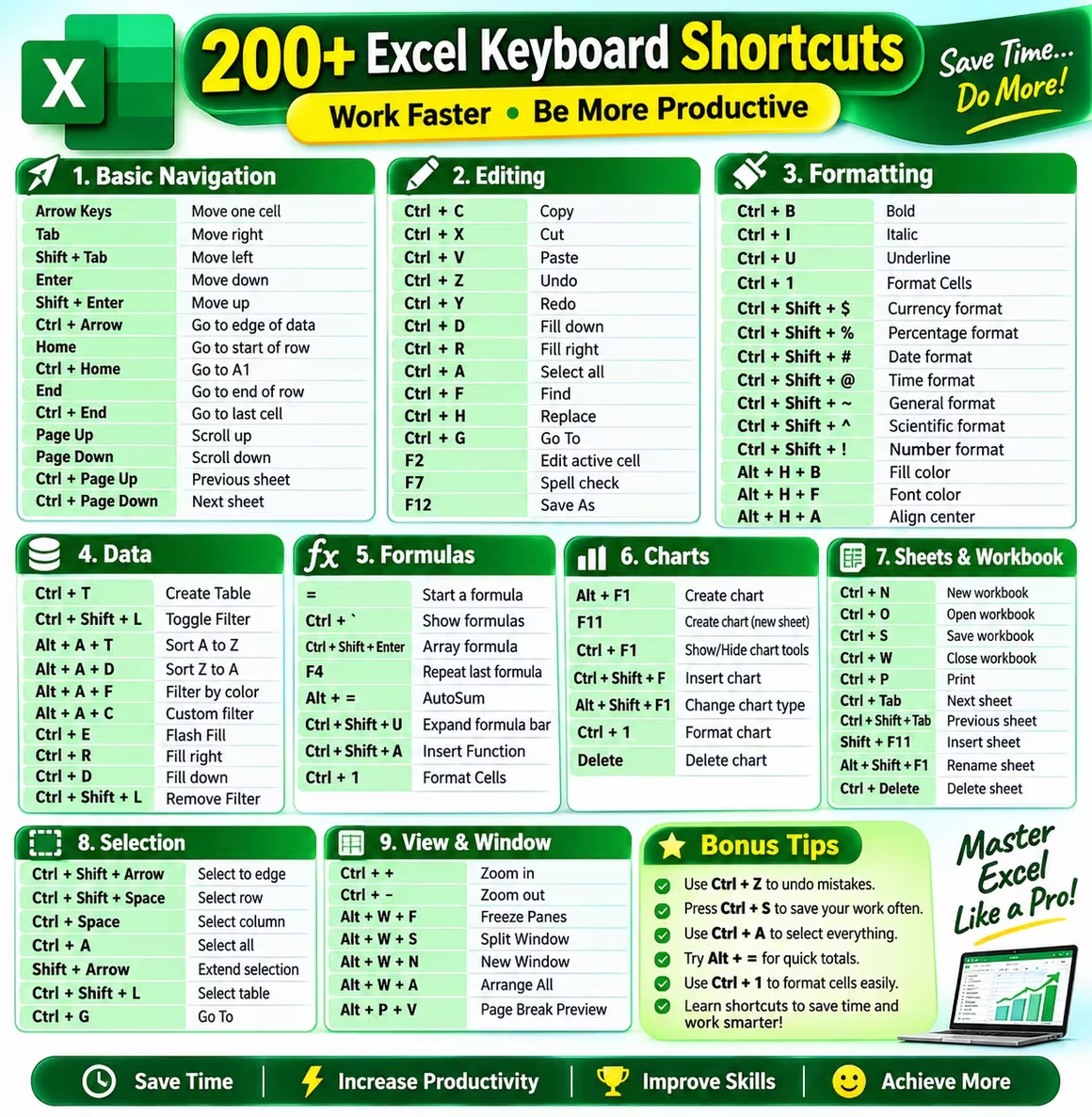
In this article, you will discover 200+ Excel keyboard shortcuts for Windows with their functions and explanations. These shortcuts are organized into different categories so you can easily find and learn the ones you need.
What Are Excel Keyboard Shortcuts?
Excel keyboard shortcuts are combinations of two or more keyboard keys that allow you to perform specific actions quickly.
For example:
- Ctrl + C: Copy selected cells.
- Ctrl + V: Paste copied information.
- Ctrl + S: Save your workbook.
- Ctrl + Z: Undo your last action.
- Ctrl + B: Apply bold formatting.
Instead of navigating through different menus, you can press a few keys to complete the same task.
1. Basic Excel Keyboard Shortcuts
These are some of the most commonly used Excel shortcuts. Beginners should learn these first because they are useful for everyday spreadsheet work.
| No. | Shortcut Key | Function |
|---|---|---|
| 1 | Ctrl + N | Create a new workbook |
| 2 | Ctrl + O | Open an existing workbook |
| 3 | Ctrl + S | Save the current workbook |
| 4 | F12 | Open the Save As dialog box |
| 5 | Ctrl + P | Print the worksheet or workbook |
| 6 | Ctrl + W | Close the current workbook |
| 7 | Alt + F4 | Close Excel |
| 8 | Ctrl + C | Copy selected cells |
| 9 | Ctrl + X | Cut selected cells |
| 10 | Ctrl + V | Paste copied or cut cells |
| 11 | Ctrl + Z | Undo the last action |
| 12 | Ctrl + Y | Redo or repeat an action |
| 13 | Ctrl + A | Select the current data region or entire worksheet, depending on context |
| 14 | Ctrl + F | Find specific text or values |
| 15 | Ctrl + H | Find and replace data |
| 16 | F1 | Open Excel Help |
| 17 | F7 | Check spelling |
| 18 | Ctrl + K | Insert a hyperlink |
| 19 | Shift + F10 | Open the context menu |
| 20 | Ctrl + Q | Open Quick Analysis options |
2. Excel Navigation Shortcuts
Navigation shortcuts help you move between cells, rows, columns, and worksheets without scrolling manually.
They are particularly helpful when working with large spreadsheets containing thousands of rows.
| No. | Shortcut Key | Function |
|---|---|---|
| 21 | Arrow Keys | Move one cell in the selected direction |
| 22 | Tab | Move one cell to the right |
| 23 | Shift + Tab | Move one cell to the left |
| 24 | Enter | Move one cell down after entering data |
| 25 | Shift + Enter | Move one cell up |
| 26 | Home | Move to the beginning of the current row |
| 27 | Ctrl + Home | Move to cell A1 |
| 28 | Ctrl + End | Move to the last used cell |
| 29 | Ctrl + Right Arrow | Move to the right edge of the current data region |
| 30 | Ctrl + Left Arrow | Move to the left edge of the current data region |
| 31 | Ctrl + Up Arrow | Move to the top edge of the current data region |
| 32 | Ctrl + Down Arrow | Move to the bottom edge of the current data region |
| 33 | Page Down | Move one screen down |
| 34 | Page Up | Move one screen up |
| 35 | Alt + Page Down | Move one screen to the right |
| 36 | Alt + Page Up | Move one screen to the left |
| 37 | Ctrl + Page Down | Move to the next worksheet |
| 38 | Ctrl + Page Up | Move to the previous worksheet |
| 39 | Ctrl + G | Open the Go To dialog box |
| 40 | F5 | Open the Go To dialog box |
| 41 | End, Right Arrow | Move to the next nonblank cell or the row’s edge |
| 42 | End, Down Arrow | Move to the next nonblank cell or the column’s edge |
| 43 | End, Left Arrow | Move toward the left edge of the current data region |
| 44 | End, Up Arrow | Move toward the top edge of the current data region |
| 45 | Ctrl + Backspace | Scroll to display the active cell |
3. Excel Cell Selection Shortcuts
Selecting cells manually can become time-consuming when you work with large datasets. These shortcuts help you select individual cells, entire rows, columns, and data ranges.
| No. | Shortcut Key | Function |
|---|---|---|
| 46 | Shift + Arrow Key | Extend the selection by one cell |
| 47 | Ctrl + Shift + Right Arrow | Select cells to the right edge of the data region |
| 48 | Ctrl + Shift + Left Arrow | Select cells to the left edge of the data region |
| 49 | Ctrl + Shift + Up Arrow | Select cells to the top edge of the data region |
| 50 | Ctrl + Shift + Down Arrow | Select cells to the bottom edge of the data region |
| 51 | Ctrl + Spacebar | Select the entire column |
| 52 | Shift + Spacebar | Select the entire row |
| 53 | Ctrl + Shift + Spacebar | Select the current region or worksheet, depending on context |
| 54 | Ctrl + Shift + Home | Extend selection to the beginning of the worksheet |
| 55 | Ctrl + Shift + End | Extend selection to the last used cell |
| 56 | F8 | Turn on Extend Selection mode |
| 57 | Shift + F8 | Add another range to the selection |
| 58 | Ctrl + Shift + Asterisk (*) | Select the current data region |
| 59 | Ctrl + A | Select the current region or entire worksheet |
| 60 | Ctrl + Period (.) | Move between the corners of a selected range |
| 61 | Shift + Backspace | Reduce a multiple-cell selection to the active cell |
| 62 | Ctrl + Shift + Page Down | Select the current and next worksheet |
| 63 | Ctrl + Shift + Page Up | Select the current and previous worksheet |
| 64 | Ctrl + Enter | Fill all selected cells with the current entry |
| 65 | Alt + Enter | Start a new line inside a cell |
4. Excel Formatting Shortcuts
Formatting makes your spreadsheet easier to read and understand. You can use these shortcuts to change fonts, apply borders, adjust number formats, and improve the appearance of your data.
| No. | Shortcut Key | Function |
|---|---|---|
| 66 | Ctrl + B | Apply or remove bold formatting |
| 67 | Ctrl + I | Apply or remove italic formatting |
| 68 | Ctrl + U | Apply or remove underline |
| 69 | Ctrl + 1 | Open the Format Cells dialog box |
| 70 | Ctrl + 2 | Apply or remove bold formatting |
| 71 | Ctrl + 3 | Apply or remove italic formatting |
| 72 | Ctrl + 4 | Apply or remove underline |
| 73 | Ctrl + 5 | Apply or remove strikethrough |
| 74 | Ctrl + 6 | Switch between hiding and displaying objects |
| 75 | Ctrl + 8 | Show or hide outline symbols |
| 76 | Ctrl + Shift + & | Apply an outline border |
| 77 | Ctrl + Shift + _ | Remove the outline border |
| 78 | Ctrl + Shift + ~ | Apply General number format |
| 79 | Ctrl + Shift + $ | Apply Currency format |
| 80 | Ctrl + Shift + % | Apply Percentage format |
| 81 | Ctrl + Shift + ^ | Apply Scientific number format |
| 82 | Ctrl + Shift + # | Apply Date format |
| 83 | Ctrl + Shift + @ | Apply Time format |
| 84 | Ctrl + Shift + ! | Apply Number format |
| 85 | Ctrl + Shift + F | Open font formatting options |
| 86 | Ctrl + Shift + P | Open font size options in Format Cells |
| 87 | Alt + H, H | Open the Fill Color menu |
| 88 | Alt + H, B | Open the Borders menu |
| 89 | Alt + H, A, C | Center-align cell contents |
| 90 | Alt + H, A, L | Left-align cell contents |
| 91 | Alt + H, A, R | Right-align cell contents |
| 92 | Alt + H, W | Toggle Wrap Text |
| 93 | Alt + H, M, C | Merge and Center |
| 94 | Alt + H, O, I | AutoFit column width |
| 95 | Alt + H, O, A | AutoFit row height |
Note: Ribbon shortcuts such as Alt + H, H are pressed in sequence, not simultaneously. The exact available ribbon commands can vary by Excel version.
5. Excel Editing Shortcuts
Editing shortcuts allow you to modify cell contents, remove information, copy formulas, and enter data more efficiently.
| No. | Shortcut Key | Function |
|---|---|---|
| 96 | F2 | Edit the active cell |
| 97 | Delete | Clear cell contents |
| 98 | Backspace | Clear the cell and begin editing |
| 99 | Esc | Cancel the current entry |
| 100 | Ctrl + D | Fill selected cells downward |
| 101 | Ctrl + R | Fill selected cells to the right |
| 102 | Ctrl + E | Use Flash Fill |
| 103 | Ctrl + Enter | Enter the same data in all selected cells |
| 104 | Ctrl + Apostrophe (‘) | Copy the formula from the cell above |
| 105 | Ctrl + Shift + Apostrophe (‘) | Copy the value from the cell above |
| 106 | Ctrl + Plus (+) | Open the Insert Cells dialog box |
| 107 | Ctrl + Minus (-) | Open the Delete Cells dialog box |
| 108 | Ctrl + Alt + V | Open Paste Special |
| 109 | Ctrl + K | Insert a hyperlink |
| 110 | Ctrl + Semicolon (;) | Insert the current date |
| 111 | Ctrl + Shift + Semicolon (;) | Insert the current time |
| 112 | Ctrl + Grave Accent (`) | Show or hide formulas |
| 113 | Ctrl + Shift + U | Expand or collapse the formula bar |
| 114 | Ctrl + L | Create a table |
| 115 | Ctrl + T | Create a table |
| 116 | F4 | Repeat the last action when possible |
6. Excel Row and Column Shortcuts
When working with employee records, student information, sales reports, or financial data, you often need to insert, delete, hide, or resize rows and columns.
These shortcuts make those tasks easier.
| No. | Shortcut Key | Function |
|---|---|---|
| 117 | Ctrl + Spacebar | Select the entire column |
| 118 | Shift + Spacebar | Select the entire row |
| 119 | Ctrl + 9 | Hide selected rows |
| 120 | Ctrl + Shift + 9 | Unhide hidden rows |
| 121 | Ctrl + 0 | Hide selected columns |
| 122 | Ctrl + Shift + 0 | Unhide hidden columns, subject to Windows settings |
| 123 | Ctrl + Plus (+) | Insert cells, rows, or columns |
| 124 | Ctrl + Minus (-) | Delete cells, rows, or columns |
| 125 | Alt + H, I, R | Insert a worksheet row above |
| 126 | Alt + H, I, C | Insert a worksheet column to the left |
| 127 | Alt + H, D, R | Delete selected rows |
| 128 | Alt + H, D, C | Delete selected columns |
| 129 | Alt + H, O, I | AutoFit column width |
| 130 | Alt + H, O, A | AutoFit row height |
| 131 | Alt + H, O, W | Set column width |
| 132 | Alt + H, O, H | Set row height |
7. Excel Formula and Function Shortcuts
Excel formulas help you perform calculations, analyze information, and manage numerical data.
The following shortcuts are useful when working with functions and formulas.
| No. | Shortcut Key | Function |
|---|---|---|
| 133 | = | Start entering a formula |
| 134 | Alt + = | Insert the AutoSum formula |
| 135 | Shift + F3 | Open the Insert Function dialog box |
| 136 | F2 | Edit the formula in the active cell |
| 137 | F4 | Change between relative and absolute cell references while editing a formula |
| 138 | Ctrl + ` | Display or hide formulas |
| 139 | Ctrl + Shift + U | Expand or collapse the formula bar |
| 140 | F9 | Calculate all worksheets in open workbooks |
| 141 | Shift + F9 | Calculate the active worksheet |
| 142 | Ctrl + Alt + F9 | Force calculation of all worksheets |
| 143 | Ctrl + Alt + Shift + F9 | Recheck dependencies and force a full calculation |
| 144 | Ctrl + A | Display function arguments when editing a formula |
| 145 | Ctrl + Shift + A | Insert function argument names while editing a formula |
| 146 | Ctrl + F3 | Open Name Manager |
| 147 | Ctrl + Shift + F3 | Create names from selected row or column labels |
| 148 | Ctrl + F | Find a particular formula or value |
| 149 | F9 (while editing a formula) | Calculate the selected portion of a formula |
| 150 | Ctrl + End (in formula bar) | Move the cursor to the end of the formula text |
8. Excel Data Management Shortcuts
Data management shortcuts are especially useful for people working with large databases, customer lists, sales reports, and business records.
| No. | Shortcut Key | Function |
|---|---|---|
| 151 | Ctrl + Shift + L | Turn filters on or off |
| 152 | Alt + Down Arrow | Open the filter or data validation dropdown |
| 153 | Ctrl + E | Use Flash Fill |
| 154 | Ctrl + T | Convert selected data into a table |
| 155 | Ctrl + L | Create a table |
| 156 | Alt + A, S, A | Sort data from A to Z |
| 157 | Alt + A, S, D | Sort data from Z to A |
| 158 | Alt + A, T | Apply or remove filters |
| 159 | Ctrl + Alt + L | Reapply filters |
| 160 | Alt + A, E | Open the Text to Columns wizard |
| 161 | Alt + A, M | Open Remove Duplicates |
| 162 | Alt + A, V, V | Open Data Validation options |
| 163 | Alt + A, W | Open What-If Analysis options |
| 164 | Alt + A, Q | Open Get Data options in supported Excel versions |
| 165 | Alt + F5 | Refresh the selected external data connection |
| 166 | Ctrl + Alt + F5 | Refresh all external data connections |
9. Excel Worksheet and Workbook Shortcuts
These shortcuts help you manage multiple worksheets, open workbook windows, and organize spreadsheet files.
| No. | Shortcut Key | Function |
|---|---|---|
| 167 | Shift + F11 | Insert a new worksheet |
| 168 | Alt + Shift + F1 | Insert a new worksheet |
| 169 | Ctrl + Page Down | Move to the next worksheet |
| 170 | Ctrl + Page Up | Move to the previous worksheet |
| 171 | Ctrl + Shift + Page Down | Select the current and next worksheet |
| 172 | Ctrl + Shift + Page Up | Select the current and previous worksheet |
| 173 | Alt + F1 | Create an embedded chart from selected data |
| 174 | F11 | Create a chart on a separate chart sheet |
| 175 | Ctrl + F6 | Switch between workbook windows |
| 176 | Ctrl + Tab | Switch to the next open workbook window in supported contexts |
| 177 | Ctrl + Shift + F6 | Switch to the previous workbook window |
| 178 | Ctrl + F4 | Close the active workbook window |
| 179 | Ctrl + N | Create a new workbook |
| 180 | Ctrl + O | Open a workbook |
| 181 | Ctrl + S | Save the workbook |
| 182 | F12 | Open Save As |
10. Excel Chart and Object Shortcuts
Charts help you present information visually. You can use these shortcuts to create charts and work with objects in your worksheet.
| No. | Shortcut Key | Function |
|---|---|---|
| 183 | Alt + F1 | Create an embedded chart using selected data |
| 184 | F11 | Create a chart on a separate chart sheet |
| 185 | Ctrl + C | Copy a selected chart or object |
| 186 | Ctrl + X | Cut a selected chart or object |
| 187 | Ctrl + V | Paste a copied chart or object |
| 188 | Delete | Delete a selected chart or object |
| 189 | Tab | Move between objects when object navigation is active |
| 190 | Ctrl + Alt + 5 | Start navigating floating objects |
| 191 | Esc | Exit floating object navigation |
| 192 | Shift + F10 | Open the context menu for a selected object |
| 193 | Alt + Left Arrow | Rotate a selected object left in supported contexts |
| 194 | Alt + Right Arrow | Rotate a selected object right in supported contexts |
11. Excel Paste Special Shortcuts
Paste Special is one of the most useful Excel features. It allows you to paste only specific parts of copied information, such as values, formulas, formatting, or column widths.
First, copy the cells using Ctrl + C. Then press Ctrl + Alt + V to open the Paste Special dialog box.
| No. | Shortcut Key | Function |
|---|---|---|
| 195 | Ctrl + Alt + V | Open Paste Special |
| 196 | A | Paste everything in the Paste Special dialog |
| 197 | F | Paste formulas |
| 198 | V | Paste values |
| 199 | T | Paste formats |
| 200 | C | Paste comments and notes |
| 201 | N | Paste data validation |
| 202 | H | Paste all contents and formatting |
| 203 | X | Paste everything except borders |
| 204 | W | Paste column widths |
| 205 | R | Paste formulas and number formats |
| 206 | U | Paste values and number formats |
Important: The letters in rows 196–206 are used after opening the Paste Special dialog. They are not standalone Excel shortcuts.
12. Excel Function Keys and Their Uses
Function keys are the keys labeled F1 through F12 on your keyboard. They perform different tasks in Microsoft Excel.
| No. | Shortcut Key | Function |
|---|---|---|
| 207 | F1 | Open Excel Help |
| 208 | F2 | Edit the active cell |
| 209 | F3 | Paste a defined name into a formula |
| 210 | F4 | Repeat the last action or change cell references |
| 211 | F5 | Open the Go To dialog box |
| 212 | F6 | Switch between worksheet, ribbon, task pane, and other areas |
| 213 | F7 | Check spelling |
| 214 | F8 | Turn on Extend Selection mode |
| 215 | F9 | Calculate all worksheets in open workbooks |
| 216 | F10 | Activate or deactivate Key Tips |
| 217 | F11 | Create a chart on a separate chart sheet |
| 218 | F12 | Open the Save As dialog box |
13. Most Useful Excel Shortcuts for Beginners
If you are new to Microsoft Excel, learning all 200+ shortcuts at once may feel difficult.
Instead, start with these essential shortcuts. They can help you complete everyday spreadsheet tasks more quickly.
| No. | Shortcut Key | What It Does |
|---|---|---|
| 219 | Ctrl + C | Copy |
| 220 | Ctrl + V | Paste |
| 221 | Ctrl + X | Cut |
| 222 | Ctrl + Z | Undo |
| 223 | Ctrl + S | Save |
| 224 | Ctrl + B | Bold |
| 225 | Ctrl + F | Find |
| 226 | Ctrl + H | Replace |
| 227 | Ctrl + T | Create a table |
| 228 | Ctrl + 1 | Format cells |
| 229 | Ctrl + Shift + L | Apply filters |
| 230 | Alt + = | AutoSum |
| 231 | Ctrl + Home | Go to cell A1 |
| 232 | Ctrl + End | Go to the last used cell |
| 233 | Ctrl + D | Fill down |
| 234 | Ctrl + R | Fill right |
| 235 | Ctrl + E | Flash Fill |
| 236 | F2 | Edit a cell |
| 237 | F4 | Repeat an action or change formula references |
| 238 | Shift + F11 | Insert a new worksheet |
Tips for Learning Excel Keyboard Shortcuts
Learning keyboard shortcuts takes practice. You do not need to memorize every shortcut in one day. Follow these simple tips to improve your Excel skills.
1. Start With Basic Shortcuts
Begin with common shortcuts such as Ctrl + C, Ctrl + V, Ctrl + S, and Ctrl + Z. These are useful in almost every spreadsheet task.
2. Practice Every Day
Spend 10–15 minutes practicing Excel shortcuts. Try using keyboard combinations instead of clicking buttons with your mouse.
3. Learn Shortcuts by Category
Learn shortcuts related to formatting, navigation, formulas, and data management separately. This makes remembering them easier.
4. Keep a Shortcut Cheat Sheet
Save or print a list of your favorite Excel shortcuts. Keep it near your computer so you can quickly check unfamiliar combinations.
5. Practice With Real Data
Create a simple spreadsheet containing names, numbers, dates, and prices. Practice sorting, filtering, formatting, and calculating data using keyboard shortcuts.
500 excel shortcut keys pdf

Frequently Asked Questions About Excel Keyboard Shortcuts
1. What are the 5 most useful Excel keyboard shortcuts?
The five most useful Excel keyboard shortcuts are:
Ctrl + C: Copy
Ctrl + V: Paste
Ctrl + Z: Undo
Ctrl + S: Save
Ctrl + F: Find
2. What is the shortcut key for saving an Excel file?
Ctrl + S is the shortcut key for saving an Excel workbook.
3. What is the shortcut key for creating a new worksheet?
Press Shift + F11 to insert a new worksheet in Excel.
4. What is the shortcut key for AutoSum in Excel?
Press Alt + = to insert the AutoSum formula into a selected cell.
5. What is the shortcut key for finding data in Excel?
Press Ctrl + F to open the Find dialog box and search for specific information.
6. What is the shortcut key for deleting a row in Excel?
Select the row using Shift + Spacebar and press Ctrl + Minus (-) to open the Delete dialog box.
8. Can I use the same Excel shortcuts on Mac?
Some shortcuts work similarly on Windows and Mac, but many are different. For example, Ctrl + C on Windows is generally Command + C on Mac. Always check the shortcut instructions for your operating system.
9. How can I learn Excel shortcuts quickly?
Start with 10 basic shortcuts and practice them daily. Gradually learn shortcuts for formatting, formulas, navigation, and data management.
10. Are Excel keyboard shortcuts the same in every version?
Most common shortcuts work across modern desktop versions of Excel. However, some ribbon commands, web shortcuts, and operating-system-specific combinations may differ.
Conclusion
Excel keyboard shortcuts are an excellent way to save time and improve productivity. Whether you are a student, accountant, teacher, office employee, or business professional, learning these shortcuts can make your spreadsheet work easier and faster.
You do not need to memorize all 200+ shortcuts immediately. Start with the most frequently used combinations and practice them regularly. As you become more comfortable, gradually learn the advanced shortcuts for formulas, formatting, charts, and data management.
Remember: The more you practice Excel keyboard shortcuts, the less you need to depend on your mouse.