How many times do you reach for your mouse while writing, browsing, or working on a spreadsheet? Probably more than you notice. Every little click takes time, especially when you repeat the same task all day. The good news is that your keyboard already has faster ways to copy text, switch windows, find information, take screenshots, and manage files. You just need to know which keys to press.
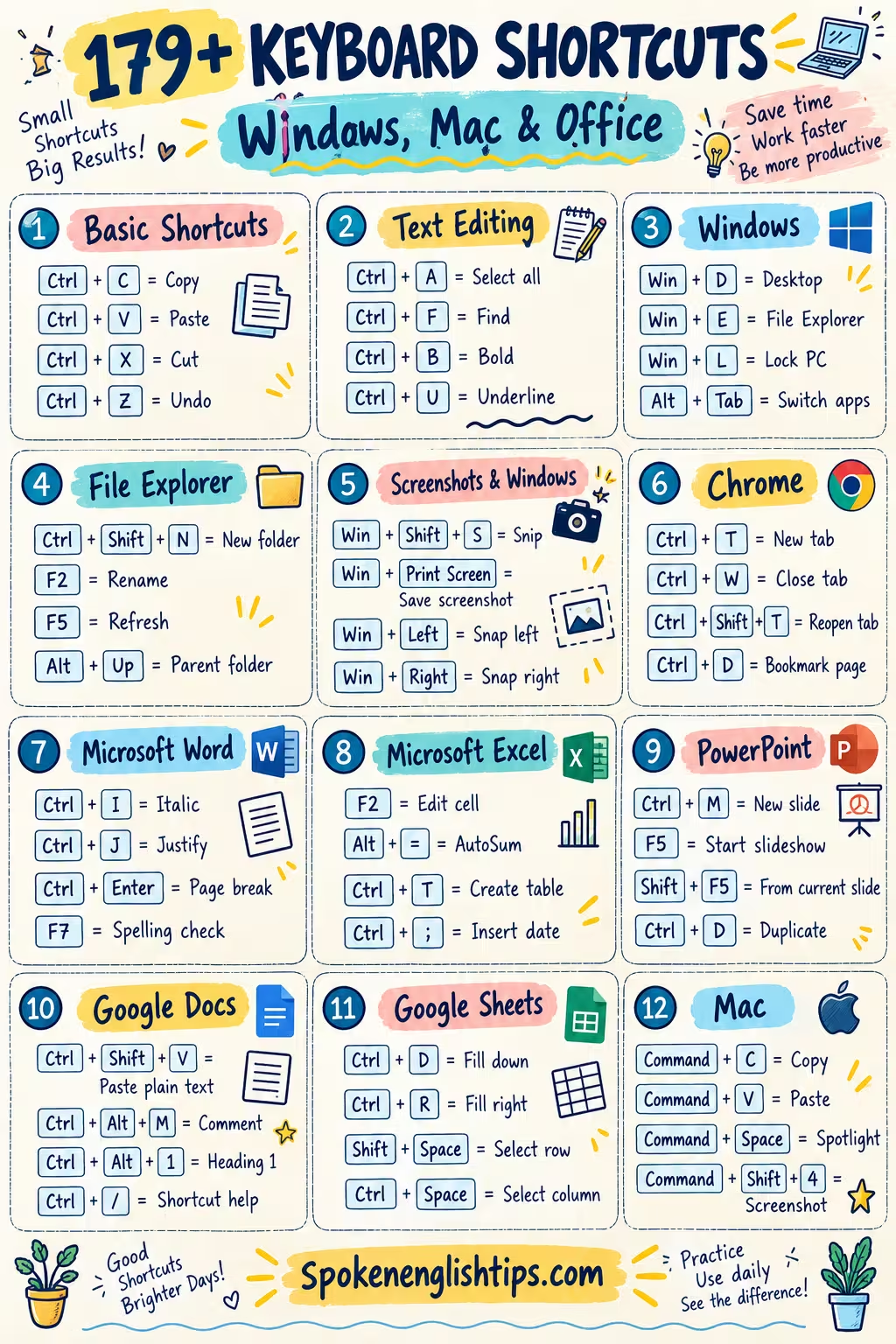
This guide brings together 180 useful keyboard shortcuts for Windows, Mac, Google Chrome, Microsoft Word, Excel, PowerPoint, Google Docs, and Google Sheets. You do not need to memorize everything today. Start with five shortcuts you use most often, practice them for a week, and add more when they feel natural.
Whether you are a student finishing homework, an office worker handling reports, or someone who simply wants fewer clicks, these shortcuts can help you work more smoothly and confidently every single day.
Quick note: Most shortcuts below are for Windows computers and Windows versions of the listed applications. Mac shortcuts have their own section. Some shortcuts vary by application, software version, or keyboard layout.
1. Basic Keyboard Shortcuts for Everyday Use
These everyday keyboard shortcuts help you copy, paste, save, print, and format text without hunting through menus. Start here because they work in many Windows programs you already use daily.
| Shortcut | What it does |
|---|---|
| Ctrl + C | Copy selected text or items |
| Ctrl + V | Paste copied content |
| Ctrl + X | Cut selected content |
| Ctrl + Z | Undo the previous action |
| Ctrl + Y | Redo an undone action |
| Ctrl + A | Select all content |
| Ctrl + S | Save a file or document |
| Ctrl + P | Open the print options |
| Ctrl + F | Find text or information |
| Ctrl + N | Create a new document or window |
| Ctrl + O | Open an existing file |
| Ctrl + B | Make selected text bold |
| Ctrl + I | Make selected text italic |
| Ctrl + U | Underline selected text |
| Ctrl + K | Insert or edit a hyperlink |
2. Text Editing and Navigation Keyboard Shortcuts
Long documents become easier when you can move the cursor and highlight text. These shortcuts help you navigate paragraphs, select words, and correct mistakes with fewer mouse movements each day.
| Shortcut | What it does |
|---|---|
| Ctrl + Left Arrow | Move to the previous word |
| Ctrl + Right Arrow | Move to the next word |
| Home | Move to the beginning of a line |
| End | Move to the end of a line |
| Ctrl + Home | Move to the beginning of a document |
| Ctrl + End | Move to the end of a document |
| Shift + Left Arrow | Select one character to the left |
| Shift + Right Arrow | Select one character to the right |
| Shift + Home | Select text to the beginning of the line |
| Shift + End | Select text to the end of the line |
| Ctrl + Shift + Left Arrow | Select the previous word |
| Ctrl + Shift + Right Arrow | Select the next word |
| Ctrl + Shift + Home | Select text to the document beginning |
| Ctrl + Shift + End | Select text to the document end |
| Ctrl + Backspace | Delete the previous word |
3. Windows 10 and Windows 11 Keyboard Shortcuts
Windows offers ways to open tools, search, lock your computer, and switch between programs. Learn these shortcuts to keep your desktop organized and finish routine tasks without unnecessary clicking today.
| Shortcut | What it does |
|---|---|
| Windows + D | Show or hide the desktop |
| Windows + E | Open File Explorer |
| Windows + I | Open Windows Settings |
| Windows + L | Lock your computer |
| Windows + R | Open the Run dialog box |
| Windows + S | Open Windows Search |
| Windows + V | Open clipboard history |
| Windows + X | Open the Quick Link menu |
| Windows + Tab | Open Task View |
| Alt + Tab | Switch between open applications |
| Alt + F4 | Close the active window |
| Ctrl + Shift + Esc | Open Task Manager |
| Windows + A | Open Quick Settings (Windows 11) |
| Windows + N | Open Notification Center (Windows 11) |
| Windows + . | Open the emoji and symbols panel |
4. File Explorer Keyboard Shortcuts
Managing downloads, documents, and folders should feel simple. File Explorer shortcuts help you create folders, rename files, move between locations, and find items without reaching for your mouse during work.
| Shortcut | What it does |
|---|---|
| Ctrl + N | Open a new File Explorer window |
| Ctrl + W | Close the active tab or window |
| Ctrl + Shift + N | Create a new folder |
| Alt + D | Select the address bar |
| Alt + Left Arrow | Return to the previous location |
| Alt + Right Arrow | Move forward to the next location |
| Alt + Up Arrow | Open the parent folder |
| F2 | Rename a selected file or folder |
| F3 | Search for files or folders |
| F5 | Refresh the current folder |
| Alt + Enter | Open the selected item’s properties |
| Shift + Delete | Delete without using the Recycle Bin |
| Ctrl + E | Select the search box |
| F11 | Toggle the expanded File Explorer view |
| Ctrl + Shift + E | Expand the folder tree in the navigation pane |
5. Screenshot and Window Management Shortcuts
Need a screenshot or more space for your work? These Windows shortcuts help capture information, arrange open windows, connect displays, and move between virtual desktops while keeping your workflow organized.
| Shortcut | What it does |
|---|---|
| Windows + Shift + S | Open the screen-snipping toolbar |
| Alt + Print Screen | Copy a screenshot of the active window |
| Windows + Print Screen | Capture and save a full-screen screenshot |
| Windows + Left Arrow | Snap the active window to the left |
| Windows + Right Arrow | Snap the active window to the right |
| Windows + Up Arrow | Maximize the active window |
| Windows + Down Arrow | Restore or minimize the active window |
| Windows + Z | Open Snap Layouts (Windows 11) |
| Windows + Ctrl + D | Create a new virtual desktop |
| Windows + Ctrl + Left Arrow | Switch to the previous virtual desktop |
| Windows + Ctrl + Right Arrow | Switch to the next virtual desktop |
| Windows + Ctrl + F4 | Close the current virtual desktop |
| Windows + P | Choose a display projection mode |
| Windows + K | Open wireless display/casting options |
| Windows + Plus (+) | Open Magnifier or zoom in |
6. Google Chrome Keyboard Shortcuts
Browser tabs can pile up when you research, study, or shop online. These Chrome shortcuts help you reopen pages, switch tabs, search history, and manage bookmarks without breaking your concentration.
| Shortcut | What it does |
|---|---|
| Ctrl + T | Open a new browser tab |
| Ctrl + Shift + T | Reopen a recently closed tab |
| Ctrl + W | Close the current tab |
| Ctrl + Tab | Switch to the next tab |
| Ctrl + Shift + Tab | Switch to the previous tab |
| Ctrl + 1 | Switch to the first tab |
| Ctrl + 9 | Switch to the last tab |
| Ctrl + L | Select the address bar |
| Ctrl + R | Refresh the current page |
| Ctrl + Shift + R | Reload the page without using cached content |
| Ctrl + H | Open browsing history |
| Ctrl + J | Open the downloads page |
| Ctrl + D | Bookmark the current page |
| Ctrl + Shift + N | Open an Incognito window |
| Ctrl + Shift + Delete | Open the Clear Browsing Data options |
7. Microsoft Word Keyboard Shortcuts
Writing assignments, letters, or reports in Microsoft Word becomes faster with keyboard commands. Use these shortcuts to create headings, adjust alignment, add comments, and format pages while keeping writing flowing.
| Shortcut | What it does |
|---|---|
| Ctrl + Alt + 1 | Apply Heading 1 style |
| Ctrl + Alt + 2 | Apply Heading 2 style |
| Ctrl + Alt + 3 | Apply Heading 3 style |
| Ctrl + E | Center-align a paragraph |
| Ctrl + L | Left-align a paragraph |
| Ctrl + R | Right-align a paragraph |
| Ctrl + J | Justify a paragraph |
| Ctrl + Shift + L | Apply a bulleted list |
| Ctrl + Enter | Insert a page break |
| Ctrl + Shift + > | Increase font size |
| Ctrl + Shift + < | Decrease font size |
| Ctrl + Shift + N | Apply the Normal paragraph style |
| Ctrl + Shift + 8 | Show or hide formatting marks |
| Ctrl + Alt + M | Insert a new comment |
| F7 | Open the spelling and grammar editor |
8. Microsoft Excel Keyboard Shortcuts
Spreadsheets become less frustrating when you know how to move, fill cells, and format information quickly. These Microsoft Excel shortcuts help students, employees, and business owners manage data more confidently.
| Shortcut | What it does |
|---|---|
| F2 | Edit the selected cell |
| Ctrl + 1 | Open the Format Cells dialog box |
| Ctrl + ; | Insert the current date |
| Ctrl + Shift + ; | Insert the current time |
| Alt + = | Insert an AutoSum formula |
| Ctrl + D | Fill down from the top cell |
| Ctrl + R | Fill right from the leftmost cell |
| Ctrl + Shift + L | Turn filters on or off |
| Ctrl + T | Create an Excel table |
| Ctrl + Space | Select an entire column |
| Shift + Space | Select an entire row |
| Ctrl + Page Down | Move to the next worksheet |
| Ctrl + Page Up | Move to the previous worksheet |
| Alt + Enter | Start a new line inside a cell |
| Ctrl + E | Apply Flash Fill |
9. Microsoft PowerPoint Keyboard Shortcuts
Making presentations takes more than slides. PowerPoint shortcuts help you add slides, arrange objects, and control your slideshow smoothly, whether you are preparing a class project or presenting at work.
| Shortcut | What it does |
|---|---|
| Ctrl + M | Insert a new slide |
| Ctrl + D | Duplicate a selected object or slide |
| Ctrl + Shift + D | Duplicate the selected slide |
| F5 | Start the presentation from the beginning |
| Shift + F5 | Start from the current slide |
| Alt + F5 | Start in Presenter View |
| Esc | End the slideshow |
| B | Show or hide a black slide during presentation |
| W | Show or hide a white slide during presentation |
| N | Advance to the next slide or animation |
| P | Return to the previous slide or animation |
| Ctrl + G | Group selected objects |
| Ctrl + Shift + G | Ungroup selected objects |
| Alt + N, X | Insert a text box |
| Alt + F10 | Open the Selection Pane |
10. Google Docs Keyboard Shortcuts
Google Docs is useful for writing and working with others online. These shortcuts help you format paragraphs, add comments, check word counts, and organize your document without opening menus each time.
| Shortcut | What it does |
|---|---|
| Ctrl + Shift + V | Paste text without formatting |
| Ctrl + Shift + C | Display the word count |
| Ctrl + Alt + 1 | Apply Heading 1 |
| Ctrl + Alt + 2 | Apply Heading 2 |
| Ctrl + Alt + 0 | Apply normal text style |
| Ctrl + Shift + 7 | Create a numbered list |
| Ctrl + Shift + 8 | Create a bulleted list |
| Ctrl + Shift + 9 | Create a checklist |
| Ctrl + Alt + M | Insert a comment |
| Ctrl + Alt + F | Insert a footnote |
| Ctrl + | Clear text formatting |
| Ctrl + Shift + E | Center-align text |
| Ctrl + Shift + L | Left-align text |
| Ctrl + Shift + R | Right-align text |
| Ctrl + / | Display available keyboard shortcuts |
11. Google Sheets Keyboard Shortcuts
Google Sheets can handle homework budgets, attendance records, and team reports. Learn these shortcuts to fill cells, format numbers, select rows, and work with spreadsheet data using fewer clicks each day.
| Shortcut | What it does |
|---|---|
| Ctrl + Shift + V | Paste values only |
| Ctrl + D | Fill selected cells downward |
| Ctrl + R | Fill selected cells to the right |
| Ctrl + Space | Select an entire column |
| Shift + Space | Select an entire row |
| Ctrl + Enter | Fill selected cells with an entry |
| Ctrl + H | Open Find and Replace |
| Ctrl + / | Display keyboard shortcut help |
| Alt + Shift + 5 | Apply strikethrough |
| Ctrl + Shift + E | Center-align cell content |
| Ctrl + Shift + L | Left-align cell content |
| Ctrl + Shift + R | Right-align cell content |
| Shift + F11 | Insert a new worksheet |
| Ctrl + ~ | Show formulas instead of calculated results |
| Ctrl + ; | Insert the current date |
12. Mac Keyboard Shortcuts
Mac users have their own helpful key combinations, often built around the Command key. These shortcuts make copying, searching, switching apps, and taking screenshots easier during work, studying, and browsing.
| Shortcut | What it does |
|---|---|
| Command (⌘) + C | Copy selected content |
| Command (⌘) + V | Paste copied content |
| Command (⌘) + X | Cut selected content |
| Command (⌘) + Z | Undo the previous action |
| Command (⌘) + Shift + Z | Redo the previous action |
| Command (⌘) + A | Select all |
| Command (⌘) + S | Save a document |
| Command (⌘) + Q | Quit an application |
| Command (⌘) + W | Close the active window or tab |
| Command (⌘) + Tab | Switch between open applications |
| Command (⌘) + Space | Open Spotlight Search |
| Command (⌘) + Shift + 3 | Capture the entire screen |
| Command (⌘) + Shift + 4 | Capture a selected screen area |
| Command (⌘) + Option + Esc | Open the Force Quit Applications window |
| Command (⌘) + Shift + 5 | Open the screenshot and recording toolbar |
How to Remember Keyboard Shortcuts Easily
You do not need to learn all 180 shortcuts at once. Choose a few that match what you normally do on your computer. For example, if you write documents every day, start with copy, paste, undo, save, and find.
Use those shortcuts regularly until pressing the keys feels natural. Then learn a few more. A small daily habit can make computer tasks faster and more comfortable.
Frequently Asked Questions
What are keyboard shortcuts?
Keyboard shortcuts are combinations of keys that perform actions without requiring you to click through menus. They can help you copy text, open programs, format documents, and manage windows.
What are the most useful keyboard shortcuts?
Some of the most useful Windows shortcuts are Ctrl + C for copying, Ctrl + V for pasting, Ctrl + Z for undoing, Ctrl + S for saving, and Alt + Tab for switching applications.
Are Windows and Mac keyboard shortcuts the same?
Not always. Many familiar Windows shortcuts use the Ctrl key, while Mac shortcuts often use Command (⌘). Some applications also have different shortcuts on each platform.
Do keyboard shortcuts work in every program?
No. Many basic shortcuts work across different programs, but some are designed for specific applications. Their behavior can also depend on the software version, keyboard layout, and current selection.
How can I learn keyboard shortcuts faster?
Start with five useful shortcuts and practice them during everyday work. Once you can use them without thinking, add another five. Regular practice is more effective than memorizing a long list in one sitting.
Final Words
Learning keyboard shortcuts is a simple way to improve your computer skills. Whether you use Windows, Mac, Word, Excel, Chrome, or Google Docs, the right key combinations can help you finish everyday tasks with fewer clicks.
Bookmark this guide and return whenever you need a shortcut. Over time, the shortcuts you use most often will become part of your daily routine.